
How to Use Google Analytics to Understand Your Website Traffic
Google Analytics is more powerful than most people realize. Here’s how to use it to make better decisions about your website.
If you run any kind of online business — a store, a service site, a SaaS product — Google Analytics is probably the single most useful free tool available to you. But most people who have it installed barely scratch the surface of what it can tell them.
Here’s how to actually use it, starting with the things that matter most.
What Google Analytics Actually Tells You
At its core, Google Analytics shows you who is visiting your website, where they came from, what they did while they were there, and where they left. That sounds simple, but the answers to those questions shape almost every decision about your site: what content to create, where to spend marketing budget, which pages need improvement, and how your site is growing over time.
The Reports That Matter Most for Small Businesses
Google Analytics has a lot of reports. Most small businesses only need a handful:
- Acquisition — shows where your traffic comes from: organic search, social media, direct visits, referrals from other sites. This tells you which channels are working and which aren’t worth investing in.
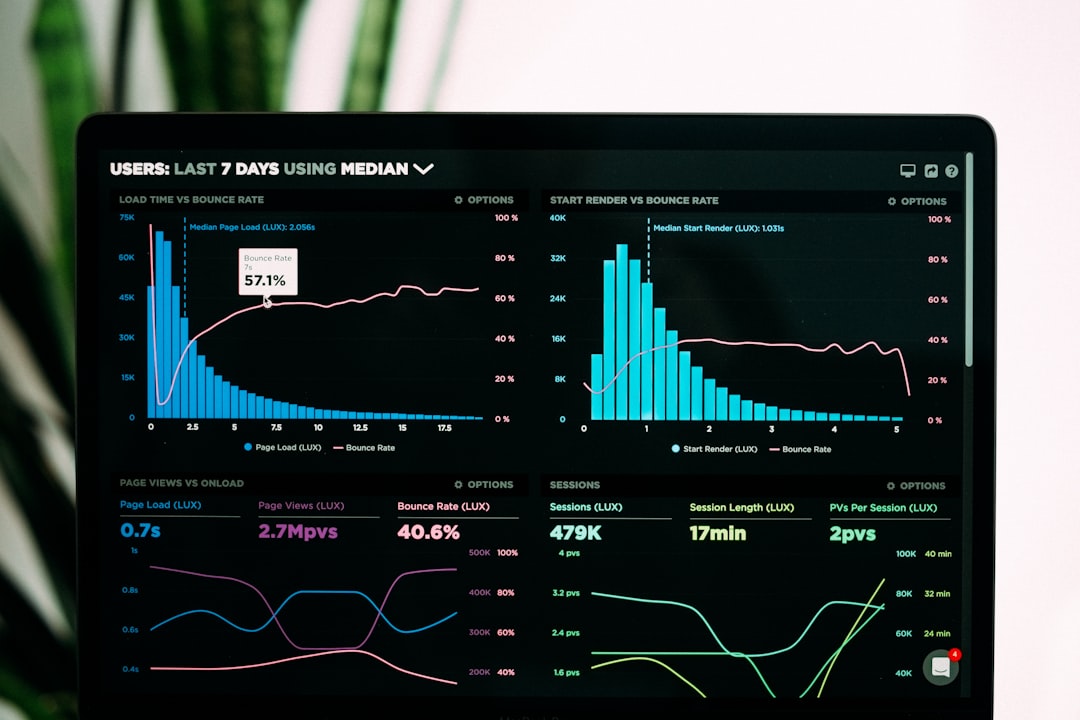
- Engagement — shows which pages get the most views, how long people spend on them, and your bounce rate (how often people leave after viewing only one page). High bounce rates on important pages often signal a mismatch between what people expected and what they found.
- Conversions — if you’ve set up goals (form submissions, button clicks, purchases), this report shows how many visitors are completing them and which traffic sources drive the most conversions.
Set Up Goals Before You Need Them
Without goals configured, Analytics tells you about traffic but not about outcomes. If your site has a contact form, a newsletter signup, or a checkout process, set up goals to track completions. This transforms Analytics from a traffic counter into a business intelligence tool. It takes about 20 minutes to configure and makes everything else more useful.
Check Your Site Speed Data
Analytics includes page speed data under Core Web Vitals reports. Slow pages correlate directly with high bounce rates and lower search rankings. If your speed metrics are poor, the fix usually involves hosting, caching, or image optimization — our guide on how to speed up your WordPress site covers the practical steps. For Google’s own documentation on interpreting Core Web Vitals data, Google’s Core Web Vitals guide is the authoritative reference.

The Bottom Line
Google Analytics is only useful if you check it regularly and act on what you find. Start with acquisition (where traffic comes from), engagement (what they do), and conversions (what they complete). Set up goals so you’re measuring outcomes, not just visits. Check speed data and fix what’s slow. That’s enough to make genuinely better decisions about your site on an ongoing basis.
